Configuring the Cookie-Banner
This page explains how to configure your cookie banner in the Consenter Manager to provide your website visitors with an accurate and transparent overview of your data processing activities, enabling them to give informed consent.
The vast majority of website operators leave tools on their default settings. However, many default configurations activate more functions than necessary, creating avoidable data protection risks for your users because more data is processed than required. This conflicts with the principle of data minimisation under Article 5(1)(c) GDPR. You should therefore take the time to configure each tool carefully and strike an appropriate balance between the functions you need and the protection of your users’ privacy. Our configuration guides help you enable only the functions you require and deactivate all others.
Step-by-Step Configuration
For configuring your cookie-banner, use the Consenter Manager.
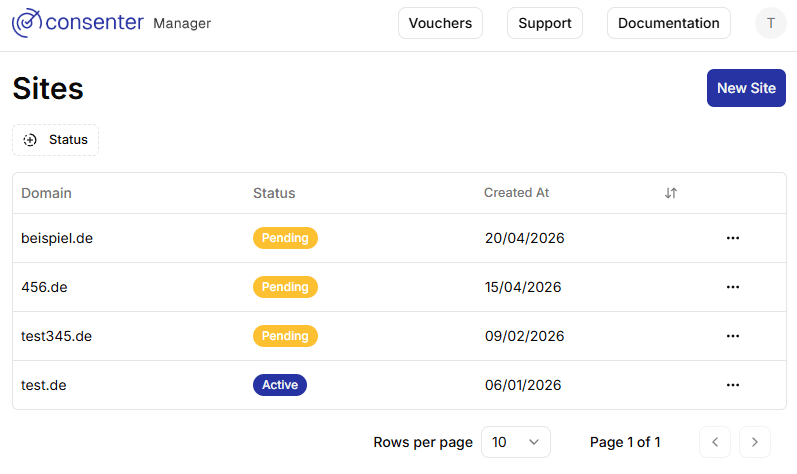
1. Create a “new site” and enter the domain of the website for which you want to configure a banner.
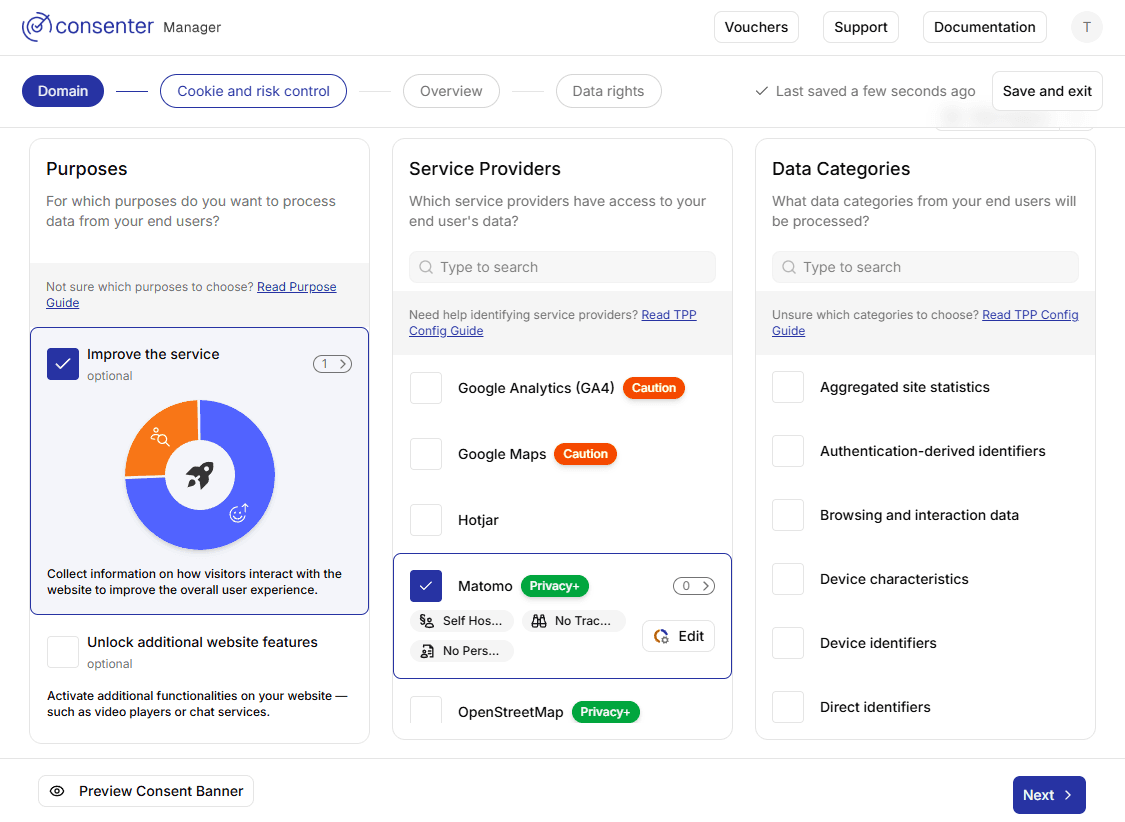
2. Select your processing purposes.
3. Specify the service providers you use for each processing purpose and define the data categories processed by each service provider.
Select the Processing Purposes
Under data protection law, consent must be obtained separately for each specific purpose of processing. The purpose of processing explains why and for what personal data will be used and is therefore the central reference point for an informed decision by data subjects. From the stated purpose you can derive which processing operations are necessary, which risks they pose for the fundamental rights of data subjects, and what benefits the processing provides – both for the website operator and for the data subjects themselves.
Depending on the purposes for which you want to process personal data, you must select one or more corresponding purposes in the Consenter Manager in order to obtain consent from your users. You can only select purposes that actually require consent. Processing that is strictly necessary for the basic functions of the website or for ensuring security does not require your visitors’ consent and only needs to be described in your privacy notice.
Choose one or more of the following purposes:
1. Improve the service
You want to use analytics tools such as Matomo or GA4 to generate statistics on how visitors use your website (for example, pages viewed, clicks, scroll depth, time spent) and where they come from (for example, which other websites referred them or from which approximate region they access your site).
If you want to analyse the effectiveness of ads and marketing campaigns, you should instead select the “Support marketing analytics” purpose, which also covers general website analytics.
2. Unlock additional website features
You may want to embed third‑party features on your website that process personal data from your visitors (e.g. videos, social media buttons, or maps), either to provide the requested service or for the provider’s own purposes.
If third‑party services process personal data for their own purposes (e.g. advertising), you must also obtain consent for this additional purpose. Ensure that the service is blocked from collecting personal data until the user has provided consent. To achieve this, we recommend implementing contextual consent.
3. Personalize the website
You want to adapt the content and appearance of your website to your visitors’ interests and preferences (for example, by displaying individually relevant content, display recommendations, or remember language settings).
4. Support marketing analytics
You want to generate statistics of how visitors use your website to better understand how successful your marketing activities are (for example, which campaigns lead to visits or conversions) and which target groups you are reaching.
If you also engage in personalised advertising, the purpose “Customising online ads” already includes marketing analytics. In this case, you can either obtain consent for both purposes separately or rely solely on consent for personalised advertising. It may be beneficial to request consent separately, as statistical analytics typically achieves higher consent rates due to its lower risk profile for website visitors.
5. Receive marketing offers
You want to occasionally send visitors information about your activities, products, or services via email or other channels.
For this specific purpose, we recommend obtaining consent directly at the point where you collect users’ contact details (e.g. email addresses) on your website, rather than via the consent banner. If you obtain consent in this way for direct communications, you do not need to select this purpose in the consent banner.
6. Receive personalized marketing offers
You want to send visitors offers, product recommendations, or information that are tailored to their individual interests and previous usage behaviour, so that they receive content that is as relevant as possible.
7. Customize online ads (non-TCF)
You want to display ads on your website that are tailored to individual visitors, for example through group- or profile-based personalisation or retargeting based on their previous (shopping) behaviour, and to measure and improve the effectiveness of this advertising at the same time.
This purpose does not enable participation in the Transparency and Consent Framework (TCF), nor does it cover data transmissions to the vendor network defined within the TCF.
Select the Service Providers
Many websites rely on external tools to provide specific functions, such as web analytics, marketing, embedded videos, maps, or social media content.
These tools are provided by third‑party service providers. Selecting appropriate tools and configuring them to match your needs has a significant impact on your overall data protection footprint.
It is important that you know which tools you use and how you have configured them on your website. Only then can you make these settings transparent to your website visitors by configuring each service provider in the Consenter Manager.
If you are unsure how to configure a tool and how to mirror this configuration in the Consenter Manager, we offer configuration guides that support you in two ways: 1. They help you configure the tool in line with the data minimisation principle (i.e. processing only the personal data necessary for your purposes). 2. They show you how to reflect this configuration in the Consenter Manager so that your website visitors are correctly informed about the processing.
Choose External Service Provider or Disclose Own Processing
In the second column, select the service provider you use for the purpose you have chosen.
If your service provider is not yet listed, add it manually as a new service provider.
If you process data without (or only partly with) external tools, add yourself as a service provider.

Add service provider information
By clicking “edit” you open the context window to submit legally required information about the tool you use.
Legal role
If you only process data on your own servers, select “self hosted”.
If you transmit data to the service provider on the basis of a data processing agreement, which limits the service provider to your own processing purposes, select “processor”.
This is the most likely scenario for services which provide analytics only.
If you transmit data to a service provider, which processes personal data for its own purposes (e.g. advertising), select “controller”, if you process personal data for shared purposes on the basis of a joint controller agreement, select “joint controller”.
This is the most common scenario for external service providers embedded on your website and in the context of personalised advertising. For some services, processing for the provider’s own purposes is enabled by default. Make sure to deactivate this option when configuring the service if you do not require this functionality.
Tracking Method
Select how your website recognises returning visitors. The available tracking methods range from low risk (no tracking or single-session) to high risk (third‑party cross‑device tracking).
Personalization Model
Specify whether, and in what way, data is used for personalisation.
You can save time by applying these settings to all other tools within this purpose by selecting “Apply to all data recipients”.
Select the Data Categories
Select all data categories which are processed by each service provider.
If you have selected all data categories, click “edit” in order to specify how long the data is retained for (storage duration) and where the data is processed (storage location).
Storage duration
If the service provider has specified a maximum timeframe, after which any personal data is erased or fully anonymised, indicate this time frame (e.g. 6 months).
If the data is retained as long as necessary for achieving a given purpose (e.g. as long as a contract with the website visitor is active, select “until the purpose is fulfilled”.
If the storage duration is determined by law (e.g. tax‑relevant accounting records and invoices), select “legal storage period” and indicate the specific legislation.
Storage location
Select the countries to which personal data is transmitted. If the country is part of the European Union (EU) or European Economic Area (EEA), it is sufficient to select “EU/EEA”.
If a country lies outside the EU or EEA, you must indicate the legal basis on which this so‑called “third‑country transfer” takes place.
For many industrialised countries, the EU Commission has issued an “adequacy decision” (see list), warranting that the receiving country has a data protection level comparable to this in the EU.
Apply to all data categories
As all data is usually processed in a similar way, tick the box “Apply to all data categories”.
If a particular data category has a different storage duration or storage location, you can adjust that category individually afterwards.
Risk comparison and Trigger System Overview
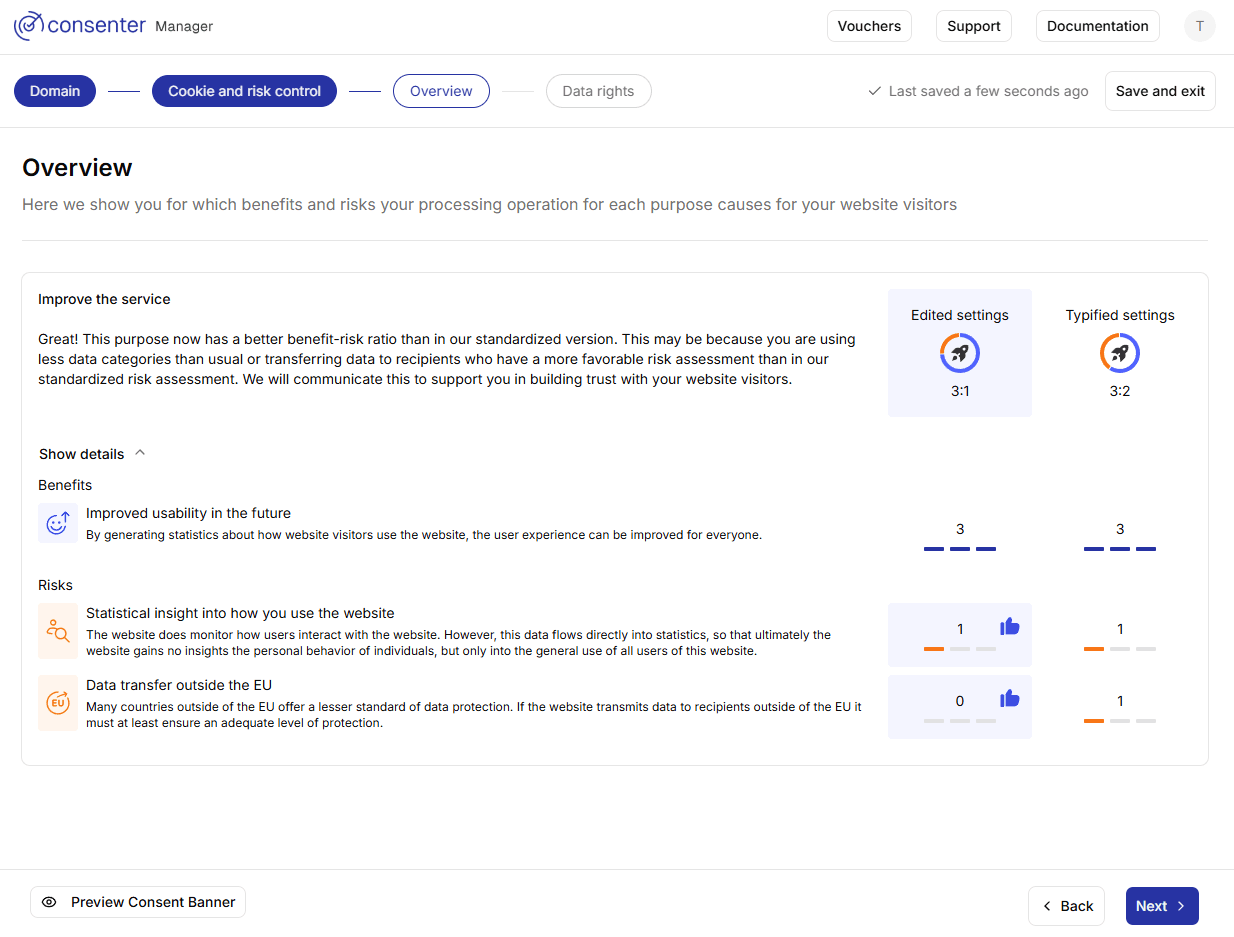
On this page, you are presented with a summary of the risks and benefits associated with each configured purpose. Your setup is compared both to the risk level of an average website and—if applicable—to the risks of your previous configuration.
If you are modifying an existing cookie banner, this page also functions as a control center for the trigger system. This system allows you to notify returning visitors about increases in risk or to request consent again from users who previously refused, if you have reduced the data protection risks for them (see section Changes in the Risk–Benefit Ratio).
Data subject rights
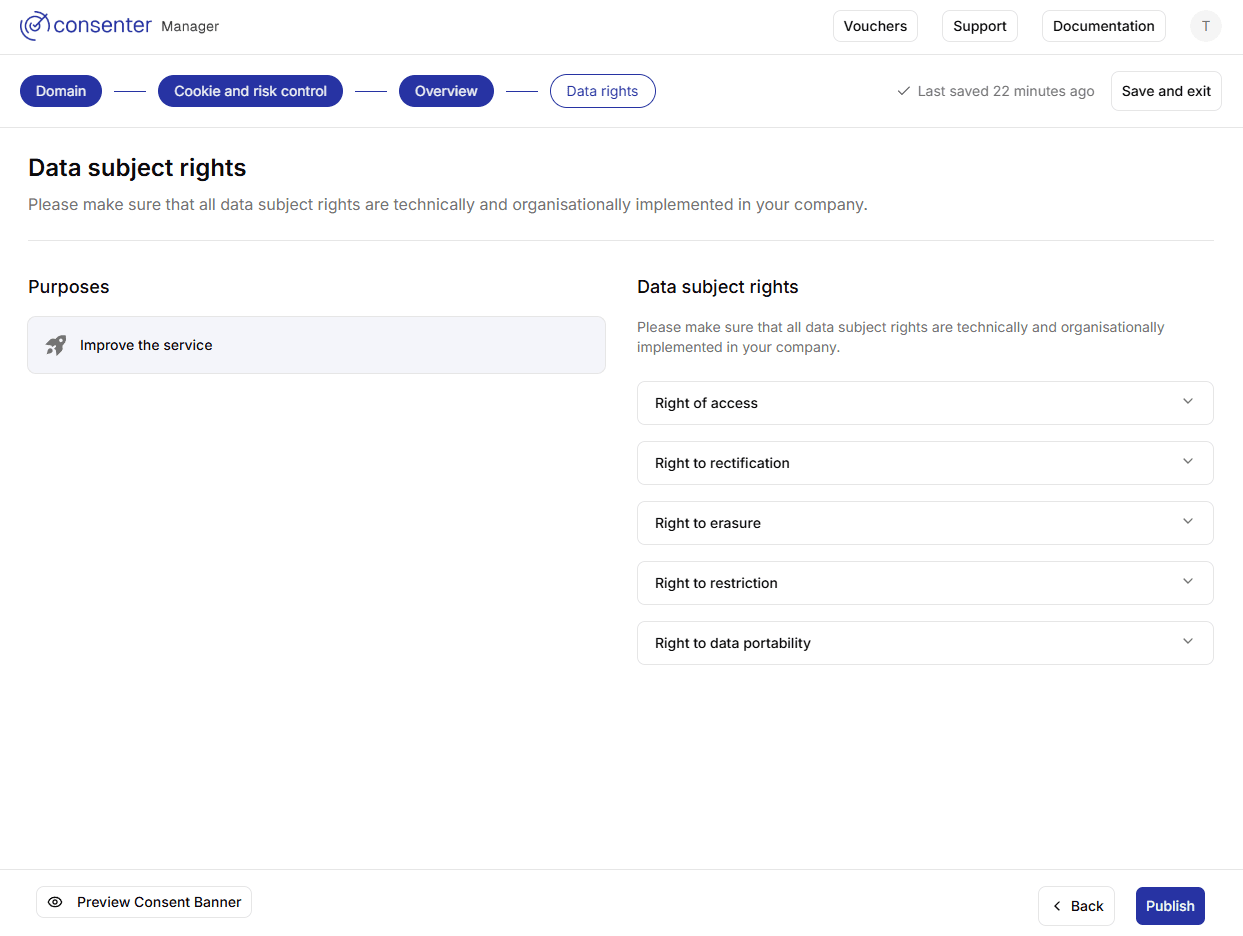
This page provides an overview of the data subject rights you are required to grant, along with the steps needed to ensure full legal compliance. It is intended for informational purposes only.
By clicking “Publish,” you apply all changes to the banner that is currently live and implemented.
If the banner code has not yet been integrated into your website, the banner will only be deployed once the technical implementation has been completed.
Before publishing, you can preview the banner to ensure that all purposes and required information have been included.
Inform your users in the Privacy Policy
Text snippet for your privacy policy
When using our consent banner, you must inform your website visitors about how their consent decisions are being processed. We therefore advise you to include the following textblock into your privacy policy:
Consenter Cookie Banner by Law & Innovation Technology GmbH

To collect and process your data protection consents, we use the Consenter Cookie Banner service provided by Law & Innovation Technology GmbH (L&I). Your consents are stored:

1. in your browser as a cookie to check whether you have already given us your consent, so that we no longer need to display the cookie banner to you, and
2. in our consent store provided by L&I, in order to prove the lawfulness of processing your personal data.

1. Collected Data

Your consent record contains:

- The build version of the consent banner at the time of consent.
- The domain you have consented to "example.com" along with a randomly generated domain ID.
- Date and time of consent.
- A randomly generated consent record ID (no user ID!) and, if consents change, the prior record ID. This way we make sure that no processing is based on your "expired" consent, for example if you have withdrawn prior consent.
- The purposes and respective third party services for which consent has been given or withdrawn.
- "Trigger" in order to monitor whether risks have increased or decreased when you revisit the website compared to the time you originally gave consent. This ensures that your consent is invalidated if the website begins to use more privacy-intrusive technologies.

2. Processing & Storage

Consent records are stored as encrypted, origin-bound cookies (SameSite=Strict) in your browser, accessible only by this website via JavaScript. No third-party access. L&I also stores consent records centrally on AWS (sub-processor) solely for proof of lawful processing. No user IDs or refusals are retained, preventing user profiling. Data is secured against unauthorised access.

3. Retention

Cookies expire after 400 days or upon browser cache clearance.

4. Identifiability

The data is weakly identifying across visits, as Consent IDs and timestamps could in theory allow a user to be recognised across multiple visits to one single website (never across multiple websites). The link is provided here for the benefit of the user, as we, as the website provider, must recognise that your previous consent records are obsolete and no longer valid. The consent records themselves provide only minimal insight into your private life (visiting a single website at a single point in time), as they are not tied to a user ID. They are never used for anything beyond managing your consent.
Imprint and further transparency information
Please ensure that all processing of personal data is also described in your privacy policy. The privacy policy must be clearly visible and easily accessible to users on every page and subpage of your website (no more than two clicks).
Make sure to include your address and contact details in the privacy policy or your imprint, so that users can identify you as the data controller and contact you regarding data protection matters.
Implement Contextual Consent
If you embed third-party content—such as maps, videos, or social media features—on your website, you must ensure that these providers do not collect personal data from visitors before consent has been obtained. To achieve this, you should implement our contextual consent solution when integrating such content.
Our contextual consent mechanism:
1. Blocks third-party content until the user has given consent.
2. Allows users to provide consent directly within the embedded content, thereby unblocking it.
3. Automatically unblocks content for users who have already consented to the purpose “Unlock additional website features.”
To implement contextual consent for any third-party provider (TPP), follow the steps below.
- Select the correct contextual consent type
- Copy-paste the respective code snippet
- Replace TPP-specific placeholders
Contextual consent types
Some third-party integrations process personal data solely to provide their service, while others also use data for their own additional purposes (e.g. advertising). This means you’ll need to collect different consents depending on the specific third-party provider you want to embed on your website.
Shown below are the three scenarios for embedding third party content and guidance on which type of contextual consent to implement (type 1 and type 2).
Technical integration
Contextual consent only works if your Consenter Banner is configured correctly in the Consenter Manager. Make sure the
purposes used by the third-party provider match the purposes enabled in your banner
. If the purposes do not match, contextual consent cannot be applied.
-
Add the contextual consent scripts
Place the contextual consent script at the top of the
<head>section:index.html <!-- Integrate Consenter contextual consent --> <!-- Paste the contextual consent script inside the <head> section --> <script src="https://banner.consenter.eu/contextual-consent.js"></script> <script src="https://banner.consenter.eu/YOUR_DOMAIN_ID/cb.js" async></script> -
Add Consenter attributes to your embed
Remove the original
srcattribute, and add Consenter data attributes inside of the<iframe>where you want to enable contextual consent. Put the URL that should load after consent intodata-consenter-content-url, then replace the placeholders with your own values:-
For type 1 (simple unblock)
iframe <!-- Enable Consenter contextual consent for a service --> <iframe width="560" height="315" data-consenter-language="DE" data-consenter-tpp-id="YOUR_SERVICE_ID" data-consenter-tpp-label="YOUR-SERVICE-NAME" data-consenter-content-label="YOUR-CONTENT-DESCRIPTION" data-consenter-content-url="YOUR_SERVICE_URL" > ... </iframe> -
For type 2 (additional purposes)
Add the required purpose flags:
When using contextual consent, you can choose from the following additional purposes:
- Improve the service
- Support marketing analytics
- Customise online ads
Find out which purposes to select for your TPP in our TPP configuration guides or the privacy policy and documentation of the respective TPP.
iframe with additional purposes <!-- Enable Consenter contextual consent for a service --> <iframe width="560" height="315" data-consenter-language="DE" data-consenter-tpp-id="YOUR_SERVICE_ID" data-consenter-tpp-label="YOUR-SERVICE-NAME" data-consenter-content-label="YOUR-CONTENT-DESCRIPTION" data-consenter-content-url="YOUR_SERVICE_URL" data-consenter-tpp-purpose-improve-the-service="true" data-consenter-tpp-purpose-marketing-analytics="true" data-consenter-tpp-purpose-customise-ads="true" > ... </iframe>
-
What each attribute does (quick reference)?
| Attribute | What it does | Where to find it? |
|---|---|---|
data-consenter-tpp-id | Tells Consenter which TPP this embed belongs to. | Always required. Find the TPP/service ID in Consenter Manager → Your Site → Active Banner → Hover over the service and click the copy button in the tooltip. |
data-consenter-tpp-label | Display name shown to the user (e.g., “YouTube video”). | Required. Use something users immediately understand. |
data-consenter-content-url | The URL that loads after the user unblocks / consents. | Required. Usually the original iframe/embed src. Remove the original src attribute so the content is blocked before consent. |
data-consenter-content-label | Short description of the specific content (e.g., “Product Demo”). | Required. Helps users understand what they are enabling. |
data-consenter-language | Sets the language of the contextual consent UI. | Optional. Supports EN and DE. If missing, the browser language is used when it is English; otherwise German is used. |
data-consenter-tpp-purpose-improve-the-service | Declares that the service uses data for Improve the service. | Required only if the TPP needs this purpose legally. Set to true. |
data-consenter-tpp-purpose-marketing-analytics | Declares that the service uses data for Support marketing analytics. | Required only if the TPP needs this purpose legally. Set to true. |
data-consenter-tpp-purpose-customise-ads | Declares that the service uses data for Customised online ads. | Required only if the TPP needs this purpose legally. Set to true. |
If unsure whether your TPP requires contextual consent of type 1 or type 2, check out our TPP configuration guides or refer to the privacy policy or documentation of the TPP.
Configuration Guides
Below you will find configuration guides to help you set up third-party tools and map these configurations within the Consenter Manager when configuring your consent banner. We will continue to expand this collection with additional guides over time.
If you would like to contribute your own configuration guides or risk assessments for tools not yet covered, we encourage you to get in touch. We are working toward opening this documentation to the community, with the aim of sharing knowledge on data protection–friendly configurations of third-party technologies.
Last updated on